Silence
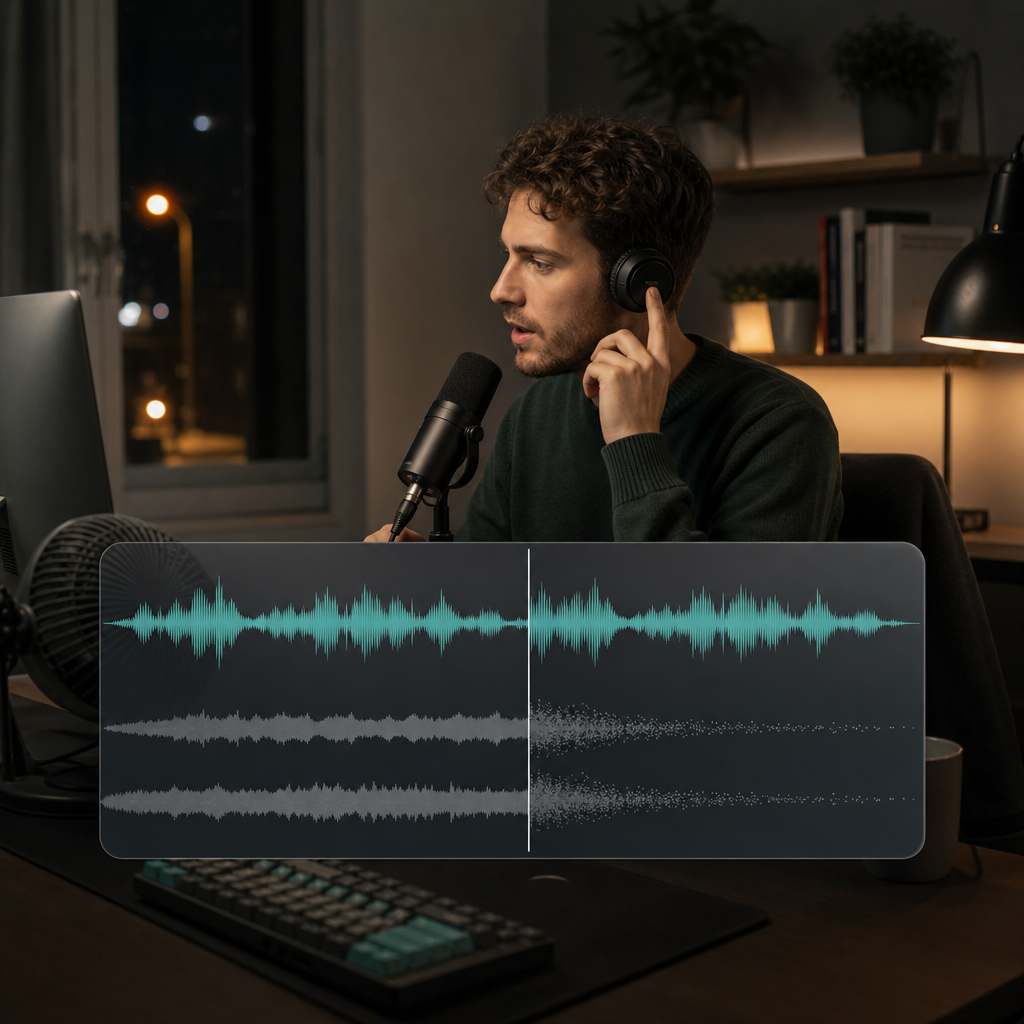
Choose a section without speech
Find a short moment where only the hiss, fan, hum, or room noise is audible.
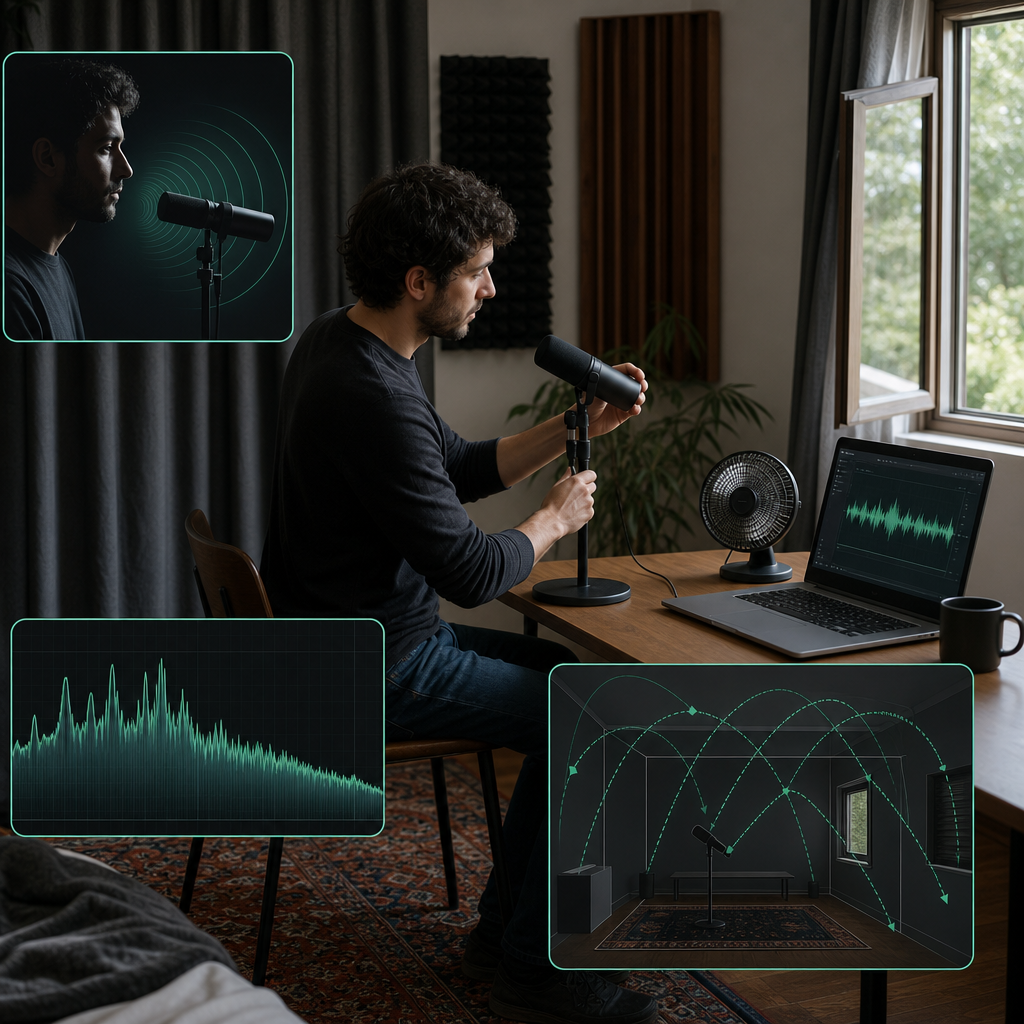
To make Audacity remove background noise effectively, select a noise-only sample, capture the Noise Profile, select the track, and preview moderate Noise Reduction settings. This method is best for steady hiss, fan noise, or hum and is less reliable for changing noise or strong room echo.
The selected sample teaches the effect what to reduce across the recording.
Silence
Find a short moment where only the hiss, fan, hum, or room noise is audible.
Match
A sample from another room or device may not match the spectrum Audacity needs to recognize.
Length
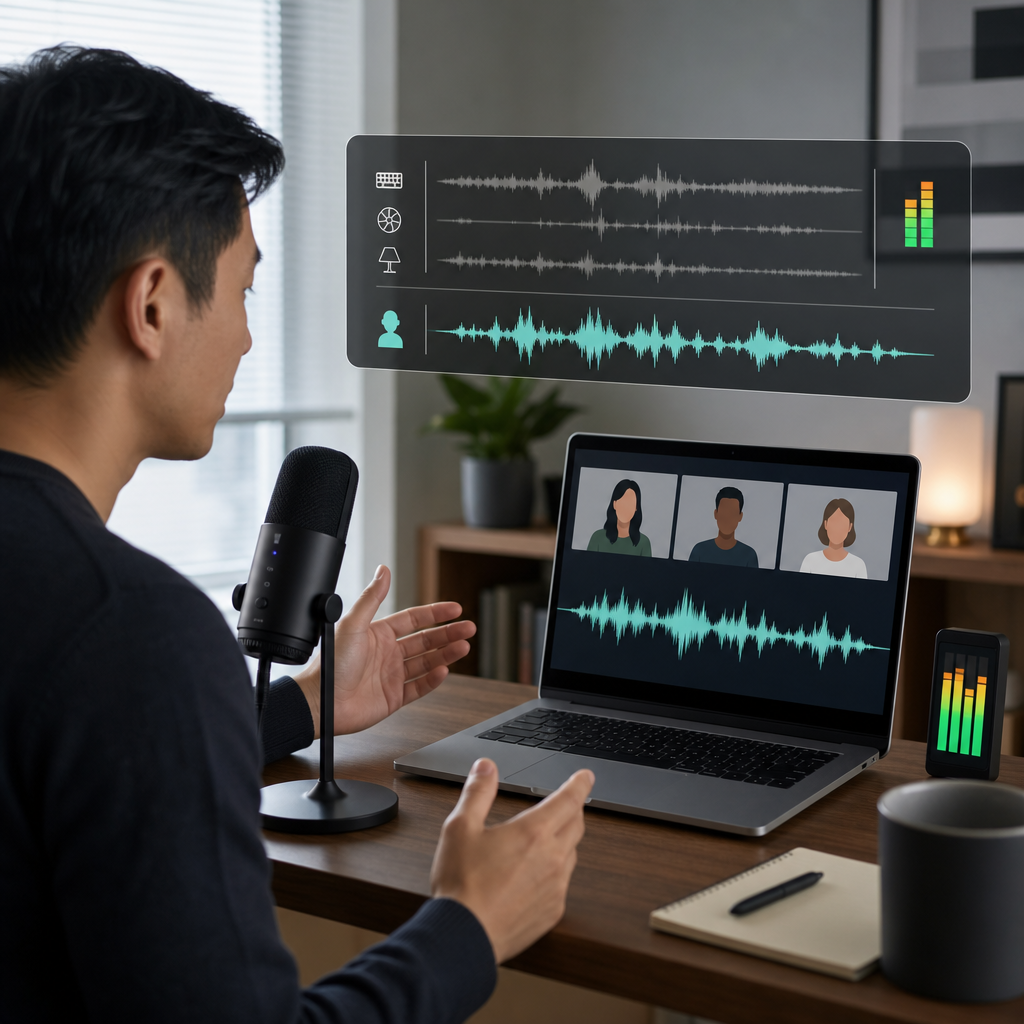
A brief but stable selection is usually better than a longer sample containing movement, breaths, or partial words.
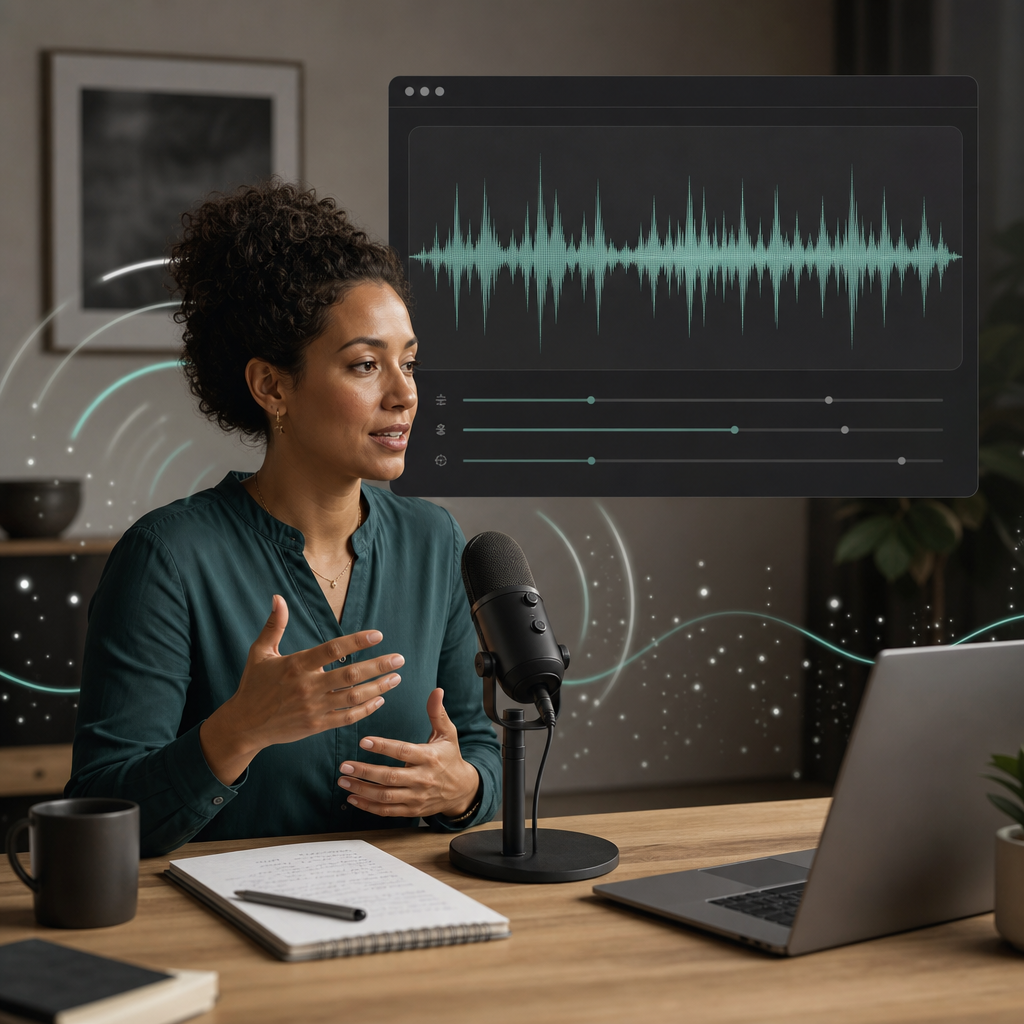
Exact values vary by recording, so use these controls as listening decisions rather than universal presets.
dB
Controls how strongly the sampled noise is lowered.
SENS
Changes how broadly Audacity classifies sound as part of the noise profile.
BANDS
Can soften tonal artifacts but may also blur wanted detail when pushed too far.
Use a light first pass and preview before applying the effect to the full recording.
Highlight a noise-only region, open Effect, choose Noise Reduction, and select Get Noise Profile.
Choose the section or full track that needs treatment, then return to the effect controls.
Listen to speech, pauses, and quiet phrase endings. Reduce strength if the voice begins to sound processed.
More reduction is not automatically a cleaner or more professional result.
Reduction
Aggressive reduction may lower the noise while leaving speech thin, hollow, or unstable.
Sensitivity
If Audacity classifies too much of the voice as unwanted, consonants and quiet syllables begin to disappear.
Smoothing
Frequency smoothing may reduce musical artifacts but can also soften the detail that makes words clear.
A stable noise-only sample and intelligible speech make the method more predictable.
“A home podcast has steady laptop fan noise and several clean pauses for sampling.”
Podcast take
Stable broadband noise
“A voiceover contains a low electrical hum that remains unchanged from beginning to end.”
Voiceover track
Tonal noise
“A lecture has air-conditioning noise beneath a clear, close speaker.”
Lecture recording
Continuous room system
The most important quality control happens after the first preview.
S, T, and F sounds often reveal excessive reduction before louder vowels do.
Speech and room decay may develop a swirling texture when the profile or settings are too aggressive.
The background should not move noticeably up and down around every phrase.
Gentler stages can preserve more speech detail, but every pass still needs comparison.
LIGHT
Reduce the obvious layer while keeping voice character stable.
CHECK
Compare against the untouched recording before adding more treatment.
STOP
End the process when extra reduction creates more damage than benefit.
Manual noise profiling is useful, but some recordings contain problems that change too quickly.
Changing noise
A single profile may not represent intermittent or moving sound well.
Heavy echo
Room reflections are attached to the voice and may need a different restoration approach.
Fast routine work
A guided AI approach can shorten the process when manual control is less important than a consistent result.
Choose a subscription for steady production or buy credits when you need flexible generation.
There is no universal preset; profile accuracy and speech preservation determine the right settings.
Use the shortest stable sample that represents the unwanted sound without speech, breaths, clicks, or movement. A clean sample matters more than a long one.
Start with moderate settings and preview. The correct amount is the lowest reduction that makes noise less distracting without thinning consonants, breaths, or quiet words.
The reduction or sensitivity may be too high, the noise profile may include speech, or the original voice may be too weak relative to the noise.
Not effectively with Noise Reduction alone. Room echo is attached to the voice through reflections, while the effect is designed primarily for a sampled steady noise.
Two light passes can sometimes sound better than one heavy pass, but compare after each step because artifacts can accumulate.
AI-assisted cleanup can be useful for routine speech work, changing noise, or situations where a shorter process matters more than manual settings.
The effect is most reliable when the recording provides a representative sample and clear speech.
“A clean noise profile gives Audacity a better target than a long selection containing breaths or partial words.”
Noise profile
Accurate sampling
“A moderate preview protects more voice detail than applying an aggressive preset across the full track.”
First pass
Speech preservation
Use the same quality checks: lower the distraction, preserve natural speech, and stop before artifacts become obvious.